


Posted by Aventis Systems on Jul 10th 2026
Quick SummarySlow performance and low-disk space warnings usually point to storage issues, not a failing computer. SSDs and NVMe drives outperform traditional HDDs in speed and reliability, though desktops allow easier upgrades than laptops with soldered components. Backing up data and confirming compatibility before installation prevents data loss. Cloud storage complements physical upgrades well, covering backup and access needs that local drives can't handle on their own. |
Running out of storage space sneaks up gradually, then all at once. One day everything works fine, and the next, saving a file triggers a warning message.
Knowing how to upgrade computer storage before hitting that wall saves time and frustration, whether you're managing a single workstation or an entire office fleet. At Aventis Systems, storage questions come up constantly from businesses trying to figure out the best path forward. The answer isn't always as complicated as it seems.
This guide breaks down what to consider before upgrading, the available storage options, and how to approach the process without losing data or incurring downtime.
Signs It's Time to Upgrade Computer Storage
Slow performance doesn't always mean a computer is dying. Often, it just means storage is nearly full. Operating systems need breathing room to manage temporary files, updates, and background processes. When a drive gets too close to capacity, everything slows down.
A few signs point clearly toward a storage upgrade:
- Constant low space warnings: notifications popping up regularly, even after deleting files
- Slow boot and load times: applications taking noticeably longer to open than they used to
- Freezing during file transfers: copying or saving large files causes lag or crashes
- Difficulty saving new files: error messages when trying to install software or save documents
- General sluggishness: a system that feels slower overall, even during basic tasks
None of these issues mean a computer needs to be replaced entirely. Newer storage often solves the problem without touching anything else inside the machine.
Understanding the Types of Storage Available
Before choosing an upgrade, it helps to know what options exist. Storage technology has changed quite a bit over the years, and picking the wrong type can leave performance gains on the table.
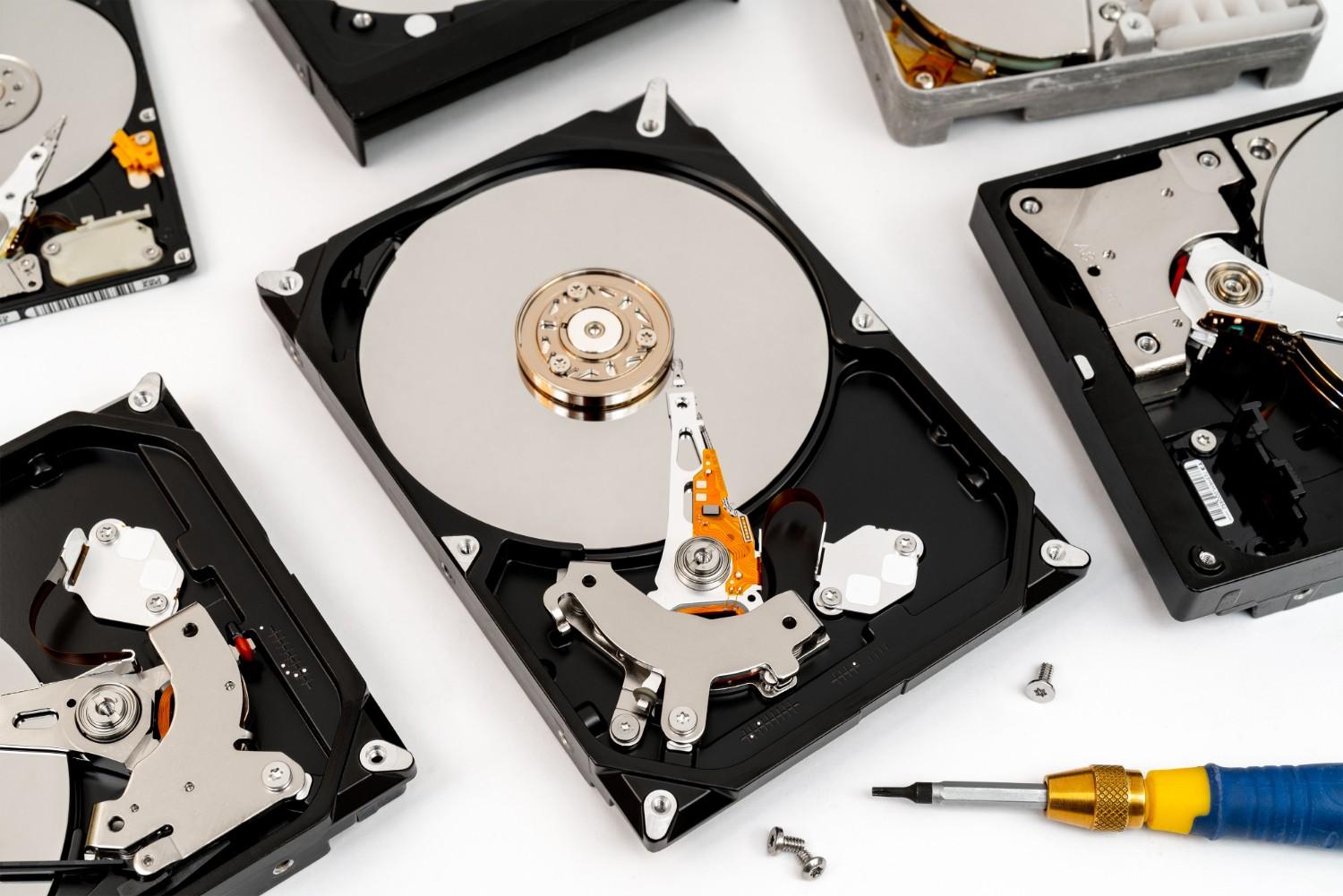
Hard Disk Drives (HDDs) use spinning disks to store data. They're affordable and offer large capacity for the price, but they're slower than newer alternatives and more prone to mechanical failure over time.
Solid State Drives (SSDs) store data on flash memory instead of moving parts. They're faster, quieter, and more durable than HDDs, though the cost per gigabyte runs higher. An SSD upgrade makes a noticeable difference in speed almost immediately for most everyday business use.
NVMe drives take SSD technology further by connecting directly to a computer's motherboard through a faster interface. They're the quickest option available, ideal for workloads involving large files, video editing, or database work, though they carry a higher price tag.
External and network storage solve a different problem. Instead of upgrading internal capacity, these options add external or network storage, which is useful for backups or shared file access.
Our storage products offer a mix of these options for businesses that want to compare specs side by side before deciding.
How to Upgrade Computer Storage the Right Way
Once the decision to upgrade is made, the process depends on the type of device involved and whether data needs to move over from an old drive.
Here's a general approach that applies to most situations:
- Back up existing data: copy files to an external drive or cloud storage before touching any hardware
- Confirm compatibility: check that the new drive fits the device's physical size and connection type
- Choose between cloning and fresh installation: cloning copies everything from the old drive automatically, while a fresh install means reinstalling the operating system and applications
- Install the new drive: physically swap the hardware, following manufacturer instructions for the specific device
- Test before removing the old drive: confirm everything runs properly on the new storage before wiping or repurposing the old one
Desktops tend to offer more flexibility for this kind of upgrade since internal components are easier to access. Laptops can be trickier depending on the model, and some newer designs have storage soldered directly to the motherboard, which entirely limits upgrade options. Checking specs before purchasing new equipment helps avoid this problem down the road.
Cloud Storage Versus Physical Storage Upgrades
Physical storage upgrades aren't the only path forward. Cloud storage has become a common addition for businesses needing more storage without adding hardware at all.
Cloud storage works well for file sharing across teams, off-site backups, and reducing dependence on any single device. It doesn't require installation and scales easily as needs grow. The tradeoff comes down to internet dependency and ongoing subscription costs, which add up over time compared to a one-time hardware purchase.
Physical storage upgrades give faster access speeds and don't rely on an internet connection to function. They also avoid recurring costs after the initial purchase.
A combination often works best. Local storage handles daily performance needs, while cloud backups protect against hardware failure or accidental data loss. Neither option completely replaces the other, and businesses benefit from having both in place rather than relying on just one.
What to Consider Before Upgrading Multiple Devices
Businesses managing several computers face a slightly different set of questions than someone upgrading a single machine at home. Planning ahead avoids unnecessary downtime across a team.
A few things worth thinking through beforehand:
- Standardizing drive types: using the same storage type across similar devices simplifies future maintenance
- Scheduling upgrades in phases: staggering installations avoids taking an entire office offline at once
- Budgeting for capacity growth: choosing slightly more storage than currently needed accounts for future data growth
- Documenting specs per device: keeping a record of what's installed where saves time during future troubleshooting
Larger upgrades benefit from a bit of planning upfront, even if it's just a simple checklist. Skipping this step tends to create confusion later, especially across a growing number of devices.
Making Storage Upgrades a Smooth Process
Upgrading computer storage doesn't have to involve guesswork. Knowing the signs that indicate a need for more space, understanding the different drive types available, and following a careful backup process before installation covers most of what matters. No matter if the choice is an SSD, an NVMe drive, or additional cloud storage, the goal remains the same: keeping systems responsive without unnecessary downtime.
Every setup has different needs, and figuring out the right storage path doesn't need to be a solo project. Get in touch with us if your team is searching for storage upgrades for a single workstation or a full office of devices.
FAQs
How do I know if my computer needs a storage upgrade?
Low space warnings, slow boot times, and lag during file transfers are common signs worth paying attention to. These issues often improve significantly once storage capacity gets increased or an older drive type gets replaced with something faster.
Is an SSD better than a hard drive for everyday use?
Yes, in most business settings. SSDs offer faster load times, quieter operation, and greater durability than traditional HDDs because they have no moving parts. The trade-off is a higher cost per gigabyte than older drive types.
Can I upgrade storage on a laptop the same way as a desktop?
Not always. Desktops generally offer easier access to internal components, so swapping drives tends to be straightforward. Some laptops have storage soldered directly to the motherboard, which limits or completely rules out future upgrades.
Do I need cloud storage if I already upgraded my physical drive?
Cloud storage and physical upgrades serve different purposes, so having both makes sense for many setups. Local storage handles daily performance needs, while cloud backups add protection against hardware failure or accidental data loss.
What should I do before installing a new storage drive?
Back up all existing data first. Then confirm that the new drive is compatible with your device before deciding whether to clone the old drive or perform a fresh installation.